- Why Convert PowerPoint to Google Slides?
- Method 1: Convert PowerPoint to Google Slides Directly via Google Slides (Recommended)
- Method 2: Convert PowerPoint to Google Slides via Google Drive
- Method 3: Import Specific PowerPoint Slides into an Existing Google Slides Presentation
- Method 4: Use an Online Converter Tool
- How to Convert PowerPoint to Google Slides Without Losing Formatting
- How to Keep Your Original PowerPoint Theme After Conversion
- Can You Convert Google Slides Back to PowerPoint?
- PowerPoint vs. Google Slides: Which Should You Use?
- Final Thoughts
- Frequently Asked Questions
How to Convert PowerPoint to Google Slides: 4 Easy Methods (Step-by-Step)

- Why Convert PowerPoint to Google Slides?
- Method 1: Convert PowerPoint to Google Slides Directly via Google Slides (Recommended)
- Method 2: Convert PowerPoint to Google Slides via Google Drive
- Method 3: Import Specific PowerPoint Slides into an Existing Google Slides Presentation
- Method 4: Use an Online Converter Tool
- How to Convert PowerPoint to Google Slides Without Losing Formatting
- How to Keep Your Original PowerPoint Theme After Conversion
- Can You Convert Google Slides Back to PowerPoint?
- PowerPoint vs. Google Slides: Which Should You Use?
- Final Thoughts
- Frequently Asked Questions


You’ve built a great presentation in Microsoft PowerPoint but now you need to share it, collaborate on it in real time, or access it from another device without PowerPoint installed. The answer? Convert it to Google Slides.
The good news is that converting PowerPoint to Google Slides is fast, free, and requires no third-party software. The not-so-great news is that if you do it the wrong way, you risk losing your formatting, fonts, animations, and layout.
That’s exactly why this guide exists. In this complete, step-by-step tutorial, you’ll learn four different methods to convert PowerPoint to Google Slides, plus how to fix the most common formatting issues after conversion so your presentation looks just as good on the other side.
Let’s get into it.
Why Convert PowerPoint to Google Slides?
Before we walk through the methods, it’s worth understanding why so many professionals and students make this switch in the first place.
Real-time collaboration is the single biggest reason. Google Slides allows multiple people to edit, comment on, and view a presentation simultaneously from anywhere in the world, on any device. PowerPoint’s co-authoring feature exists, but it requires everyone to have Microsoft 365 and an active internet connection synced through OneDrive.
Device and platform flexibility is another major advantage. Google Slides works in any browser, including Chrome, Safari, Firefox, and Edge, on Windows, Mac, Chromebook, Android, or iOS. No software installation is needed. As long as you have a Google account and an internet connection, your presentation is accessible.
Easier sharing is the third compelling reason. Instead of emailing a heavy .pptx attachment, you can share a Google Slides link with customizable permissions (view only, comment, or full editing access) in seconds.
And finally, cloud-based auto-saving means you’ll never lose your work to a crashed program or a forgotten “Save” click again.
Now let’s look at how to actually make the conversion happen.
Method 1: Convert PowerPoint to Google Slides Directly via Google Slides (Recommended)
This is the easiest and most straightforward method, and it’s the one most users should start with. It converts your PowerPoint file directly inside Google Slides without needing to touch Google Drive first.
Step 1: Open your browser and go to slides.google.com. Sign in to your Google account if prompted.
Step 2: On the Google Slides homepage, click the blank presentation option to open a new, empty slide deck.
Step 3: In the new presentation, click File in the top-left menu, then select Open from the dropdown.
Step 4: In the pop-up window that appears, click the Upload tab.
Step 5: Either drag and drop your PowerPoint (.pptx or .ppt) file into the upload area, or click Select a file from your device to browse for your file manually.
Step 6: Google Slides will automatically process and convert the file. Within a few seconds (or slightly longer for larger files), your PowerPoint presentation will open inside Google Slides, fully converted and ready to edit.
Step 7: The file is automatically saved to your Google Drive as a Google Slides presentation. You can rename it by clicking on the title at the top of the screen.
That’s it. Your PowerPoint is now a Google Slides file, with all slides, text, and most formatting carried over.

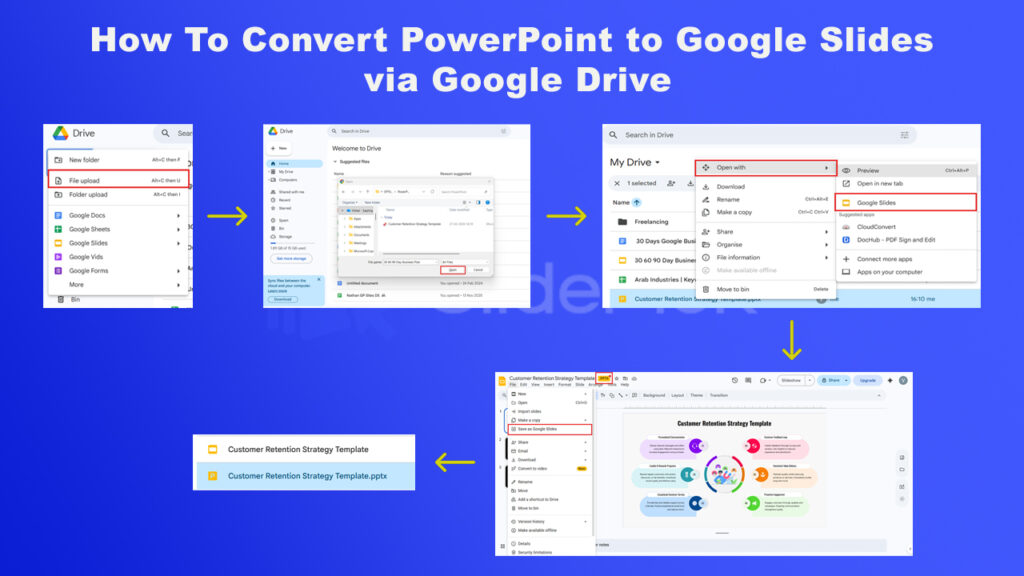
Method 2: Convert PowerPoint to Google Slides via Google Drive
This method is particularly useful if you need to convert multiple PowerPoint files or if you’re working within a shared team Drive. It keeps both your original .pptx file and the new Google Slides version stored together in Drive.
Step 1: Go to drive.google.com and sign into your Google account.
Step 2: Click the + New button in the top-left corner of the screen, then select File Upload from the dropdown menu.
Step 3: Browse your device and select the PowerPoint file you want to convert. Click Open to begin uploading. The file will appear in your Google Drive once the upload is complete.
Step 4: Once uploaded, right-click on the PowerPoint file in your Drive. In the context menu that appears, hover over Open with, then click Google Slides.
Step 5: The file will open in Google Slides in a new browser tab. At this stage, it is technically still a PowerPoint file being viewed inside Google Slides. You can tell because you’ll see a “.pptx” badge next to the file name.
Step 6: To fully convert and save it as a native Google Slides file, click File in the top-left menu and select Save as Google Slides.
Step 7: A new Google Slides file will be created and saved in your Drive. You’ll now have both the original .pptx and the converted .gslides version as two separate files.
Pro Tip: If you no longer need the original PowerPoint file, you can safely delete it from Google Drive to free up storage space.
Method 3: Import Specific PowerPoint Slides into an Existing Google Slides Presentation
This method is ideal when you don’t want to convert an entire PowerPoint file, only certain slides, or when you want to merge PowerPoint content into an already-existing Google Slides presentation.
Step 1: Open the Google Slides presentation you want to import slides into. If you’re starting fresh, create a new blank presentation at slides.google.com.
Step 2: Click File in the top menu, then select Import slides from the dropdown.
Step 3: In the Import Slides dialog box, you’ll see tabs for My Drive, Shared drives, and Upload. If your PowerPoint is already in Drive, navigate to it. If not, click Upload and select your file from your device.
Step 4: After the file loads, Google Slides will display thumbnail previews of every slide in your PowerPoint. Click the slides you want to import and they’ll be highlighted with a blue border. To import all slides at once, click All in the top-right of the dialog.
Step 5: At the bottom of the dialog, you’ll see a checkbox labeled Keep original theme. If you want the imported slides to retain their PowerPoint design (fonts, colors, backgrounds), make sure this box is checked. If you uncheck it, the slides will automatically adopt the theme of your current Google Slides presentation.
Step 6: Click Import Slides. The selected PowerPoint slides will be added to your Google Slides presentation immediately.
This method gives you granular control. You pick exactly which slides you need, and you choose whether to keep their original styling.
Method 4: Use an Online Converter Tool
If you can’t or don’t want to use a Google account, several free online converter tools allow you to upload a .pptx file and download a Google Slides-compatible version. Tools like SlideSpeak, Zamzar, and CloudConvert support this conversion.
Step 1: Visit your chosen converter tool’s website.
Step 2: Upload your PowerPoint file from your device.
Step 3: Select the output format (Google Slides or a .gslides compatible format).
Step 4: Download the converted file and upload it to Google Drive.
Important caveat: While online tools can work in a pinch, they often produce more formatting errors than the native Google Drive methods. They also require you to upload your file to a third-party server, which may be a concern if your presentation contains confidential or sensitive information. For most users, Methods 1 or 2 are safer and more reliable.
How to Convert PowerPoint to Google Slides Without Losing Formatting
This is the question most people actually have. The conversion process works well for basic content, but certain PowerPoint features don’t carry over perfectly to Google Slides. Here’s a breakdown of what can go wrong and how to fix it.
1. Custom Fonts Are Replaced
The problem: If your PowerPoint uses a custom or licensed font that isn’t available in Google Fonts, Google Slides will substitute it with a default font like Arial, which changes your entire presentation’s look.
The fix: Before converting, swap any custom fonts in PowerPoint for web-safe, widely supported options such as Arial, Roboto, Calibri, Georgia, or Times New Roman. These are available in both PowerPoint and Google Slides, ensuring consistent rendering.
2. Complex Animations Don’t Transfer
The problem: PowerPoint has a much wider library of animation effects than Google Slides. Complex entrance effects, motion paths, and multi-step animation sequences often break or disappear during conversion.
The fix: After converting, go through each slide and manually re-apply animations using Google Slides’ built-in options. If you use animation heavily, consider simplifying your effects before conversion. Stick to basic Fade or Appear animations that have direct equivalents in Google Slides.
3. Embedded Videos May Not Play
The problem: Videos inserted into PowerPoint from local files on your computer’s hard drive won’t transfer correctly to Google Slides, because Google Slides needs to link to an online source to play video.
The fix: Before converting, upload your videos to Google Drive or YouTube, then re-embed them in Google Slides using the Insert > Video menu and linking to the Drive or YouTube source.
4. Charts and Graphs May Lose Styling
The problem: Charts created in PowerPoint (especially those linked to Excel data) may lose their color styling, custom labels, or data altogether when opened in Google Slides.
The fix: After conversion, rebuild any complex charts directly in Google Slides using the Insert > Chart feature, which links to Google Sheets. This ensures full compatibility and makes future data updates much easier.
5. Slide Layouts and Spacing May Shift
The problem: PowerPoint and Google Slides handle text boxes, margins, and element positioning slightly differently. After conversion, some text may overflow its box, or images may shift slightly from their original positions.
The fix: Do a full slide-by-slide review after conversion. Click on each text box, image, or shape and manually re-align anything that has moved. Use the Arrange > Align tools in Google Slides to position elements precisely.
6. SmartArt May Not Convert Correctly
The problem: PowerPoint’s SmartArt diagrams (process flows, hierarchies, cycles) don’t have a direct equivalent in Google Slides and often convert as static images, making them uneditable.
The fix: If you need editable diagrams in Google Slides, recreate them using Google Slides’ built-in Diagram feature (Insert > Diagram) after conversion.
How to Keep Your Original PowerPoint Theme After Conversion
One of the most frequently asked questions is: “How do I convert PowerPoint to Google Slides without losing my theme?”
Here is the definitive answer.
When using Method 3 (Import Slides), always make sure the “Keep original theme” checkbox is enabled at the bottom of the Import Slides dialog box. This tells Google Slides to carry over the background design, color palette, and font scheme from your PowerPoint template.
When using Method 1 or 2, your theme is typically preserved automatically. However, if anything looks off, you can manually re-apply the theme by going to Slide > Change theme and selecting the closest match, or clicking Import theme to upload your PowerPoint file again and extract its design.
Can You Convert Google Slides Back to PowerPoint?
Yes, and it’s just as simple. If you’ve worked on a presentation in Google Slides and need to export it back to PowerPoint format, just follow these steps.
In Google Slides, click File > Download > Microsoft PowerPoint (.pptx). The file will download to your device in .pptx format, ready to open and edit in Microsoft PowerPoint.
This two-way compatibility makes it easy to work between both platforms depending on what each collaborator or situation demands.
PowerPoint vs. Google Slides: Which Should You Use?
Now that you know how to convert between them, it’s worth knowing when to use each tool.
Use PowerPoint when:
- You need advanced animations, motion paths, and Morph transitions
- Your presentation includes complex charts linked to Excel data
- You’re working offline or in environments without reliable internet
- You need precise design control with the Slide Master and advanced formatting tools
- You’re delivering a high-stakes, design-heavy presentation
Use Google Slides when:
- You need real-time collaboration with a team
- Accessibility from multiple devices is a priority
- You want easy, link-based sharing with customizable permissions
- You’re working in a Google Workspace environment (Gmail, Docs, Sheets)
- You need a simple, free, always-available presentation tool
For many professionals, the best workflow is to create in PowerPoint where the design tools are more powerful, and share via Google Slides where collaboration is seamless. That’s exactly what this conversion process enables.
Final Thoughts
Converting PowerPoint to Google Slides is one of the smartest moves you can make when collaboration, accessibility, or cross-device flexibility matters. With the four methods outlined in this guide, including importing directly through Google Slides, uploading via Google Drive, importing specific slides, or using an online converter, you have all the options you need to handle any scenario.
The key to a smooth conversion is preparation before you convert (switching to compatible fonts, simplifying animations, uploading media online) and a careful review after (checking layouts, re-aligning elements, rebuilding complex charts).
Follow the steps in this guide, and you’ll convert your PowerPoint to Google Slides without losing your formatting, your design, or your sanity.
Now go ahead, upload that .pptx file and start collaborating.
Frequently Asked Questions
A: Yes, completely free. All the methods described in this guide use Google Slides and Google Drive, which are free with any Google account. No third-party software or subscription is needed.
A: Basic animations like Fade and Appear are generally preserved. However, complex or multi-step animations that are unique to PowerPoint may not convert correctly. Always review animations after conversion and recreate any that didn’t transfer properly.
A: Yes. On Android, you can use the Google Drive app to upload and open a .pptx file, then save it as Google Slides. On iPhone, you can do the same using the Google Drive iOS app. The process is slightly different from desktop but follows the same core logic.
A: Use Method 3 (Import Slides). When the slide thumbnails appear, simply click on the single slide you want to import rather than selecting all of them. Only that slide will be added to your Google Slides presentation.
A: Your original .pptx file is not deleted or overwritten. Google Slides creates a separate copy of your presentation in Google Slides format. Both files will coexist in your Google Drive unless you manually delete one.
A: Yes, but large files (especially those with many high-resolution images or embedded videos) may take longer to upload and convert. If you’re having trouble, try compressing images in PowerPoint first (File > Info > Compress Media) before converting.
A: Google Slides supports both .pptx (PowerPoint 2007 and later) and the older .ppt format. Both can be uploaded and converted using the methods in this guide.
Related Articles
 March 10th, 2026
80+ Creative and Fun PowerPoint Night Ideas: Topics for Your Next PowerPoint Night
PowerPoint Tutorials- February 26th, 2026
How to Use PowerPoint: The Complete Step-by-Step Guide for Beginners and Beyond
PowerPoint Tutorials - March 2nd, 2026
How to Create an Org Chart in PowerPoint (Easy Guide for 2026)
PowerPoint Tutorials