- Can You Add Music to Google Slides?
- How to Add Music Audio to Google Slides
- Method 1: How to Add Music Audio to Google Slides (The Easiest Way)
- How to Adjust Audio Playback Settings in Google Slides
- How to Add Background Music Across All Slides
- Method 2: Add Music Using a YouTube Video (Alternative Method)
- How to Add Voice Narration to Google Slides
- Common Problems and How to Fix Them
- File Format and Size Recommendations
- Accessibility and Copyright Considerations
- When Should You Use Music in Google Slides?
- Quick Checklist: Add Music to Google Slides
- Conclusion
- Frequently Asked Questions

- Can You Add Music to Google Slides?
- How to Add Music Audio to Google Slides
- Method 1: How to Add Music Audio to Google Slides (The Easiest Way)
- How to Adjust Audio Playback Settings in Google Slides
- How to Add Background Music Across All Slides
- Method 2: Add Music Using a YouTube Video (Alternative Method)
- How to Add Voice Narration to Google Slides
- Common Problems and How to Fix Them
- File Format and Size Recommendations
- Accessibility and Copyright Considerations
- When Should You Use Music in Google Slides?
- Quick Checklist: Add Music to Google Slides
- Conclusion
- Frequently Asked Questions


If you’re wondering how to add music audio to Google Slides, you’re in the right place. Whether you want background music for a school project, narration for an online course, or sound effects for a business presentation, Google Slides makes it possible — if you know exactly where to click and which settings to use.
This guide gives you the clearest, most complete explanation available online — including step-by-step instructions, playback settings, background music tricks, and troubleshooting tips.
Let’s start.
Can You Add Music to Google Slides?
Yes — you can add music or audio directly into Google Slides using files stored in Google Drive. You can also use YouTube videos as a workaround if needed.
There are three main ways to add audio:
- Insert audio from Google Drive (best and official method)
- Embed a YouTube video (audio workaround)
- Add narration per slide (voiceover style)
The most reliable and professional method is inserting audio from Google Drive, so we’ll focus on that first.
How to Add Music Audio to Google Slides
To add music audio to Google Slides, upload your MP3 or WAV file to Google Drive, then open your presentation and click Insert → Audio. Select your uploaded file and adjust playback settings such as autoplay, loop audio, and stop on slide change to control how the music plays during your presentation.
Quick Steps:
- Upload your audio file to Google Drive
- Open Google Slides and select your slide
- Click Insert → Audio
- Choose your file and click Select
- Set playback to Automatically if needed
- Disable Stop on slide change for background music
Method 1: How to Add Music Audio to Google Slides (The Easiest Way)
This is the official and recommended way.
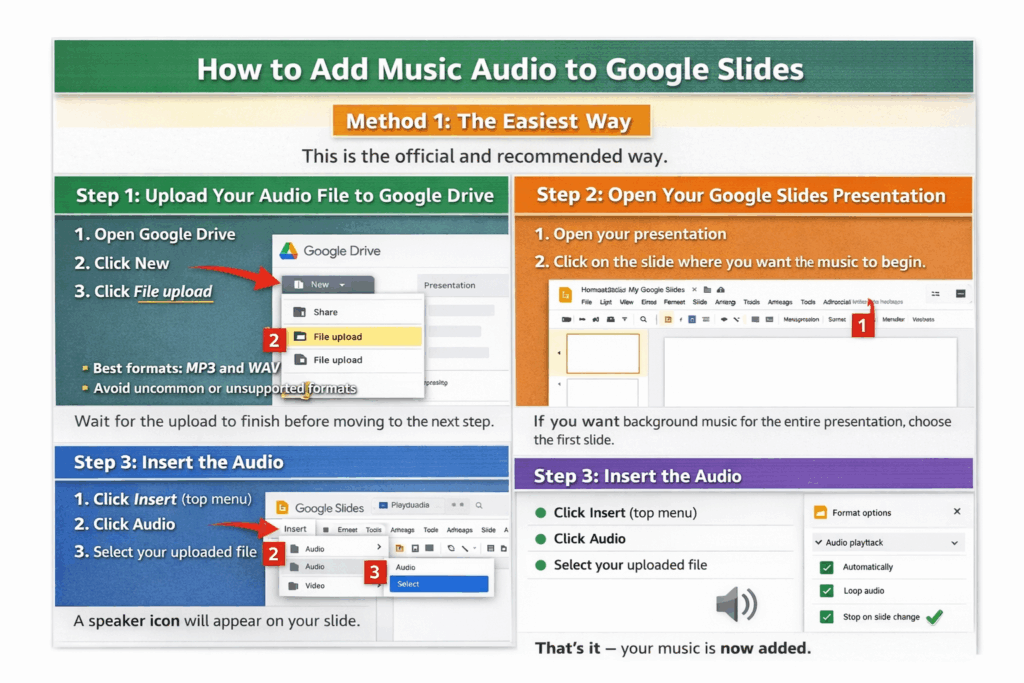
Step 1: Upload Your Audio File to Google Drive
Google Slides only allows you to insert audio files that are stored in Google Drive.
- Open Google Drive
- Click New
- Click File upload
- Select your MP3 or WAV file
Best formats: MP3 and WAV
Avoid uncommon or unsupported formats
Wait for the upload to finish before moving to the next step.
Step 2: Open Your Google Slides Presentation
- Open your presentation.
- Click on the slide where you want the music to begin.
If you want background music for the entire presentation, choose the first slide.
Step 3: Insert the Audio
- Click Insert (top menu)
- Click Audio
- Select your uploaded file
- Click Select
A speaker icon will appear on your slide.
That’s it — your music is now added.
How to Adjust Audio Playback Settings in Google Slides
Adding audio is only half the job. Now you must configure playback correctly.
Click the speaker icon. Then open Format options → Audio playback.
You will see these settings:
Start Playing (On Click vs Automatically)
- On click
- Automatically
Choose Automatically if you want background music.
Volume Control
- Low
- Medium
- High
Set this carefully so it doesn’t overpower narration.
Loop Audio
Enable this if you want music to repeat continuously.
Stop on Slide Change
Uncheck this if you want music to continue when moving to the next slide.
Hide Icon During Presentation
Enable this if you don’t want the speaker icon visible while presenting.
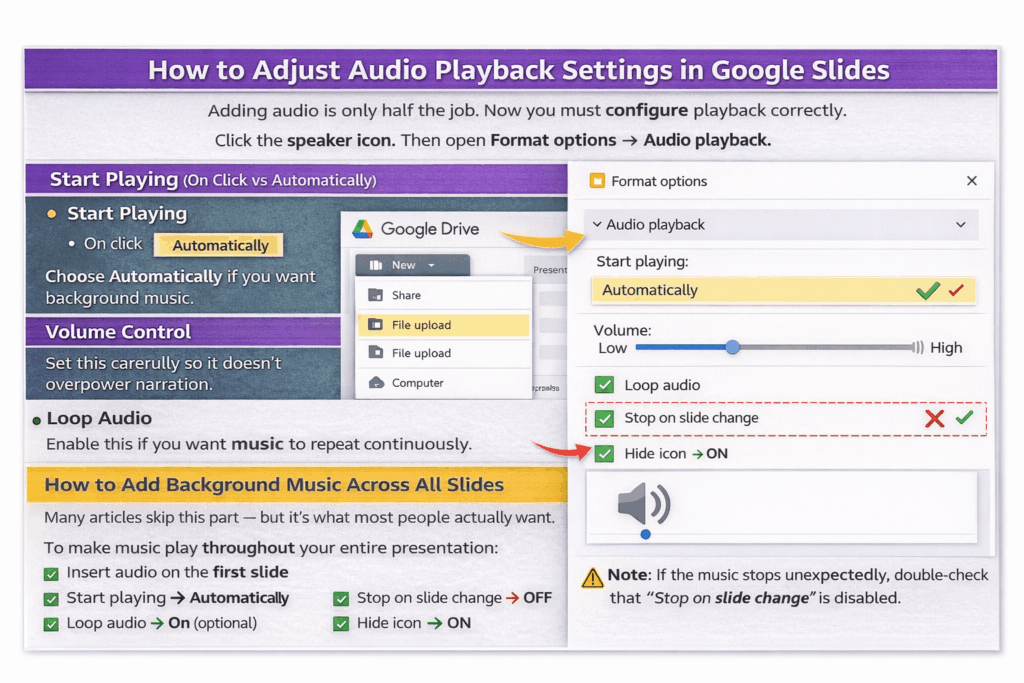
How to Add Background Music Across All Slides
Many articles skip this part — but it’s what most people actually want.
To make music play throughout your entire presentation:
- Insert audio on the first slide
- Set:
- Start playing → Automatically
- Loop audio → On (optional)
- Stop on slide change → OFF
- Hide icon → ON
Now the music will continue as you move through slides.
⚠ Note: If the music stops unexpectedly, double-check that “Stop on slide change” is disabled.
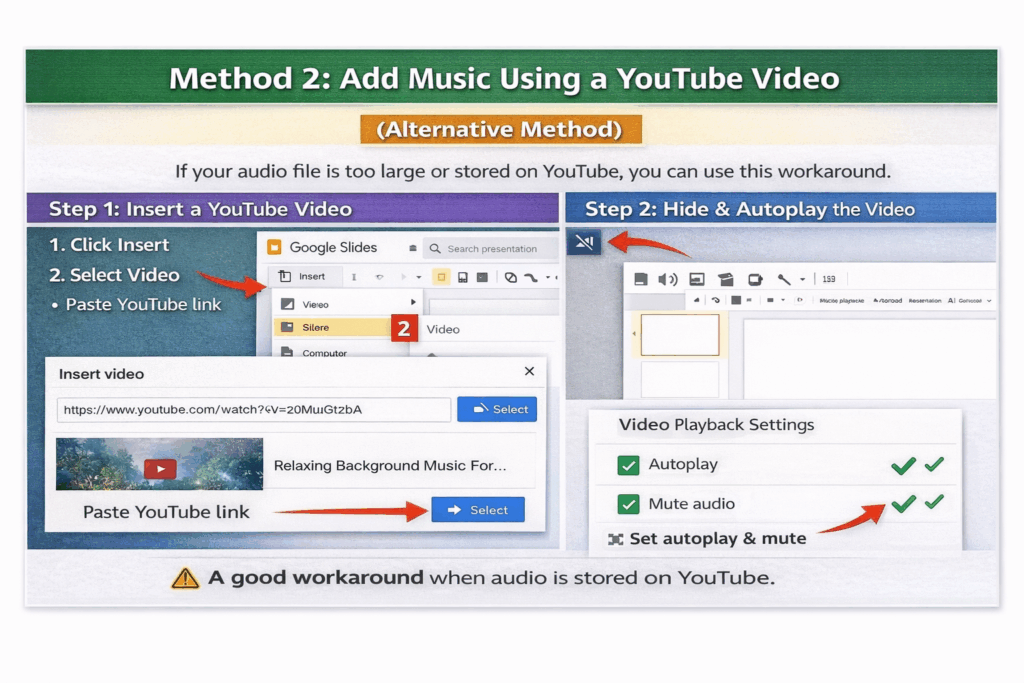
Method 2: Add Music Using a YouTube Video (Alternative Method)
If your audio file is too large or stored on YouTube, you can use this workaround.
Steps:
- Click Insert
- Click Video
- Paste YouTube link
- Insert the video
- Resize it very small or move it off-slide
- In video playback settings:
- Set autoplay
- Mute visuals if necessary
This method depends on internet connectivity, so it’s less reliable than using Drive audio.
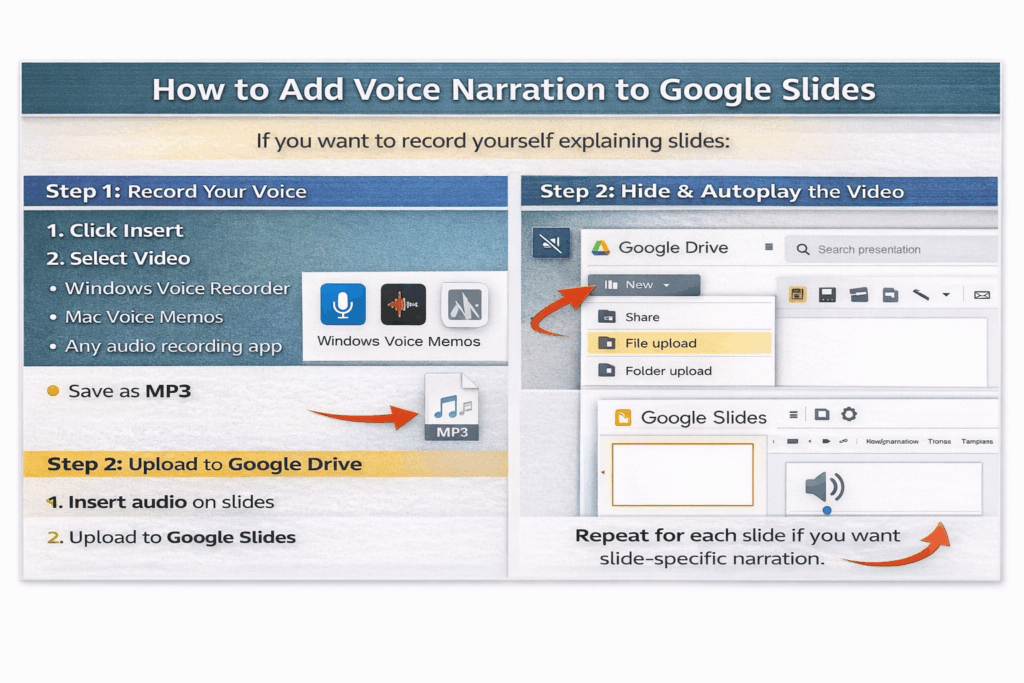
How to Add Voice Narration to Google Slides
If you want to record yourself explaining slides:
- Record your voice using:
- Windows Voice Recorder
- Mac Voice Memos
- Any audio recording app
- Save as MP3
- Upload to Google Drive
- Insert audio on each slide
Repeat for each slide if you want slide-specific narration.
Common Problems and How to Fix Them
Problem: Audio Option Is Missing
Solution: Make sure you’re using Google Slides in a desktop browser, not the mobile app.
Problem: Viewers Cannot Hear Audio
Solution:
- Check Google Drive sharing permissions
- Set file access to “Anyone with the link can view”
Problem: Music Stops When Changing Slides
Solution:
- Uncheck “Stop on slide change”
- Make sure autoplay is enabled
Problem: Audio Won’t Play
Solution:
- Use MP3 or WAV
- Re-upload the file
- Refresh your browser
File Format and Size Recommendations
- Keep audio files under 10MB if possible
- Compress long tracks before uploading
- Avoid extremely long background tracks
Smaller files load faster and reduce presentation lag.
Accessibility and Copyright Considerations
If your presentation includes important spoken content:
- Add captions or transcript text
- Include narration notes in speaker notes
- Do not rely on music alone to convey information
Accessibility improves both professionalism and usability.
Copyright Reminder
Before adding music:
- Use royalty-free music
- Use licensed tracks
- Avoid copyrighted songs unless you have permission
Using unauthorized music in business or public presentations can cause legal issues.
When Should You Use Music in Google Slides?
Music works best for:
- Event slideshows
- School projects
- Marketing presentations
- Portfolio showcases
- Product launches
- Online course modules
Avoid background music in:
- Data-heavy board meetings
- Serious investor presentations
- Situations where focus must remain on numbers
Quick Checklist: Add Music to Google Slides
To add music audio to Google Slides:
- Upload MP3 to Google Drive
- Insert → Audio
- Set autoplay
- Disable stop on slide change
- Adjust volume
- Hide speaker icon
That’s the complete process.
Conclusion
Now you know exactly how to add music audio to Google Slides — clearly, correctly, and professionally.
The easiest and most reliable method is uploading your audio to Google Drive and inserting it directly into your presentation. With proper playback settings, you can create seamless background music or voice narration that enhances your slides without interruptions.
Most online guides only show the basic steps. This guide gave you:
- Exact menu navigation
- Playback configuration explained
- Continuous background music setup
- Troubleshooting solutions
- Accessibility and copyright advice
If you follow these steps, your Google Slides presentation will include smooth, professional audio every time.
Frequently Asked Questions
1. How do I make music play automatically in Google Slides?
2. How do I play music across all slides in Google Slides?
3. Can I add music to Google Slides from YouTube?
4. What audio formats are supported in Google Slides?
5. Is it better to use Google Drive audio or YouTube for background music?
Related Articles
 February 12th, 2026
How to Make Bullet Points in Google Slides (Step-by-Step Guide)
Google Slides Tutorials- March 13th, 2026
How to Create a Timeline in Google Slides (Step-by-Step Guide)
Google Slides Tutorials - March 6th, 2026
How to Create a Jeopardy Game on Google Slides [Free Jeopardy Template Included]
Google Slides Tutorials