- Why Google Slides Is the Smart Choice to Create a Jeopardy Game
- Planning Before You Start Building Jeopardy Game in Google Slides
- Step 1: Open Google Slides and Configure Your Presentation
- Step 2: Build the Game Board
- Step 3: Build Each Question Slide
- Step 4: Add a Reveal Slide After Each Clue
- Step 5: Link Your Board to Every Clue Using Navigation Links
- Step 6: Polish the Visual Design
- How to Use a Template to Save Time in Make Jeopardy on Google Slides
- Google Slides vs PowerPoint: Which Should You Use?
- Running Your Jeopardy Game on the Day
- Common Mistakes to Avoid
- Free Jeopardy Template for Google Slides and PowerPoint
- Final Thoughts
- Frequently Asked Questions
How to Create a Jeopardy Game on Google Slides [Free Jeopardy Template Included]


- Why Google Slides Is the Smart Choice to Create a Jeopardy Game
- Planning Before You Start Building Jeopardy Game in Google Slides
- Step 1: Open Google Slides and Configure Your Presentation
- Step 2: Build the Game Board
- Step 3: Build Each Question Slide
- Step 4: Add a Reveal Slide After Each Clue
- Step 5: Link Your Board to Every Clue Using Navigation Links
- Step 6: Polish the Visual Design
- How to Use a Template to Save Time in Make Jeopardy on Google Slides
- Google Slides vs PowerPoint: Which Should You Use?
- Running Your Jeopardy Game on the Day
- Common Mistakes to Avoid
- Free Jeopardy Template for Google Slides and PowerPoint
- Final Thoughts
- Frequently Asked Questions


If you have been searching for the best way to build an interactive Jeopardy presentation, you are in the right place. I have built this type of game dozens of times for classrooms, office training sessions, and casual game nights, and every time it gets the audience genuinely excited. In this guide I will walk you through everything from setting up your presentation to connecting every clue to the correct destination, so your game runs smoothly from start to finish.
By the end of this tutorial you will have a Jeopardy game in Google Slides with a linked game board and you’ll definitely learn to create your own Jeopardy, individual question slides, and a clean navigation system that feels just like the real show. No paid tools, no complicated software, and no design experience required. Whether you want to make a jeopardy game for a classroom or a party, this guide covers everything. Let’s learn how to make a jeopardy in Google Slides
Why Google Slides Is the Smart Choice to Create a Jeopardy Game
There are many ways to host a trivia-style game, but I keep coming back to this presentation platform because it is free, browser-based, and easy to share with anyone. It saves automatically, works on any device, and lets collaborators edit the same file in real time. The ability to share a view-only link after the session so contestants can review all questions and answers is something I find incredibly useful. When I need to create a jeopardy game fast, the built-in tools here are simply the most accessible.
When you use Google Slides, you also get a navigation system that is the core mechanic making Jeopardy work. Instead of advancing through slides one by one, each dollar value on your board jumps directly to the correct clue when clicked. That non-linear flow is what turns a static slideshow into something that feels truly alive.
Planning Before You Start Building Jeopardy Game in Google Slides
Before opening any presentation software, I always spend a few minutes planning on paper. Decide on your topics and clues first. A 5×4 board with five categories and four clues each gives you 20 questions total and is ideal for a 30 to 45-minute session. Write your clues and answers down before you start designing so the build process stays fast and focused.
Also decide your value range upfront. Classic Jeopardy uses 200, 400, 600, 800, and 1000. For a classroom setting you might simplify to 100 through 400. Whatever dollars amount you choose, keep it consistent across every column so the board is easy to read at a glance.
Step 1: Open Google Slides and Configure Your Presentation
Go to slides.google.com and start a blank presentation. Name it something descriptive right away using File, Rename. Then go to File, Page setup, and choose the 16:9 widescreen option. This matches most projectors and displays. Once that is set, go to the Slide menu, select Apply layout, and choose Blank so your first slide starts completely clean.

Step 2: Build the Game Board
The game board is the visual hub of your presentation. This is the grid contestants look at to pick a category and point value throughout the game. Here is how I build it.
Insert a Table Layout & Style the Board for Visual Appeal
Go to Insert and hover over Table, then select 5 columns by 5 rows grid. Your top row will hold category names, and the rows below will hold dollar values. Resize the table to fill the full slide by using click and drag on each edge until it reaches the slide borders. Type each category name into the top row, then fill in your values in the cells below.
Right-click any cell and change the fill to deep royal blue, the standard game show color. Set all text to white or bright yellow. Increase the size on dollar value cells to at least 36pt so numbers are bold and easy to read from across the room. For an extra layer of polish, give the category row a slightly darker shade to visually separate it from the values below.
If you want more individual control over each cell, use a rectangle shape instead of a table cell. Go to Insert, then Shape, and choose Rectangle. Draw it, style it, then use copy and paste to duplicate it across your grid. This method takes slightly longer but gives you more control over border radius and drop shadows.

Step 3: Build Each Question Slide
Each cell on your Jeopardy board needs a dedicated slide behind it. For a standard game that means 20 slides total. Add a new blank slide using Ctrl and M. Insert a text box from the Insert menu, then click and drag it to fill the center of the slide. Type your clue inside. Remember that Jeopardy clues are phrased as statements and contestants must respond in the form of a question.
Once your first slide is fully styled, duplicate it and update the text in each copy. This keeps everything consistent without rebuilding from scratch each time. Label the top of each slide with the category and dollar value so everyone knows exactly where they are in the categories and questions lineup.

Step 4: Add a Reveal Slide After Each Clue
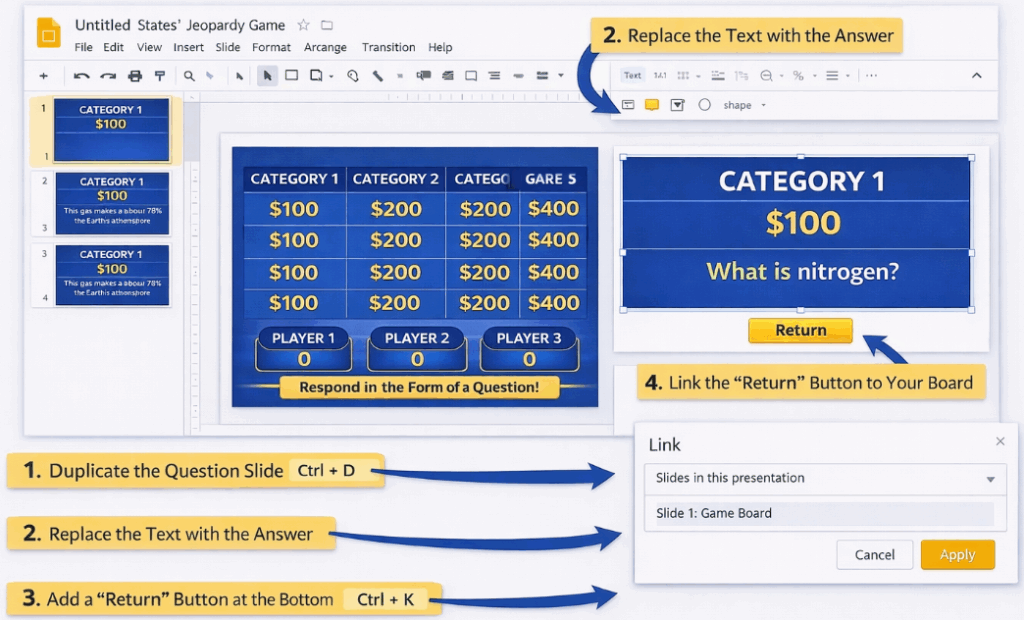
Directly after each question, add an answer slide. Duplicate the previous slide, place the copy right after it, clear the text, and type the correct answer phrased as a question, such as “Who is Albert Einstein?” Style this reveal with a contrasting accent color so players immediately recognize the answer reveal. Add a clearly labeled return button at the bottom, which you will link back to your board in the next step. Having a dedicated reveal for each answer keeps players organized and the game flowing.
Step 5: Link Your Board to Every Clue Using Navigation Links
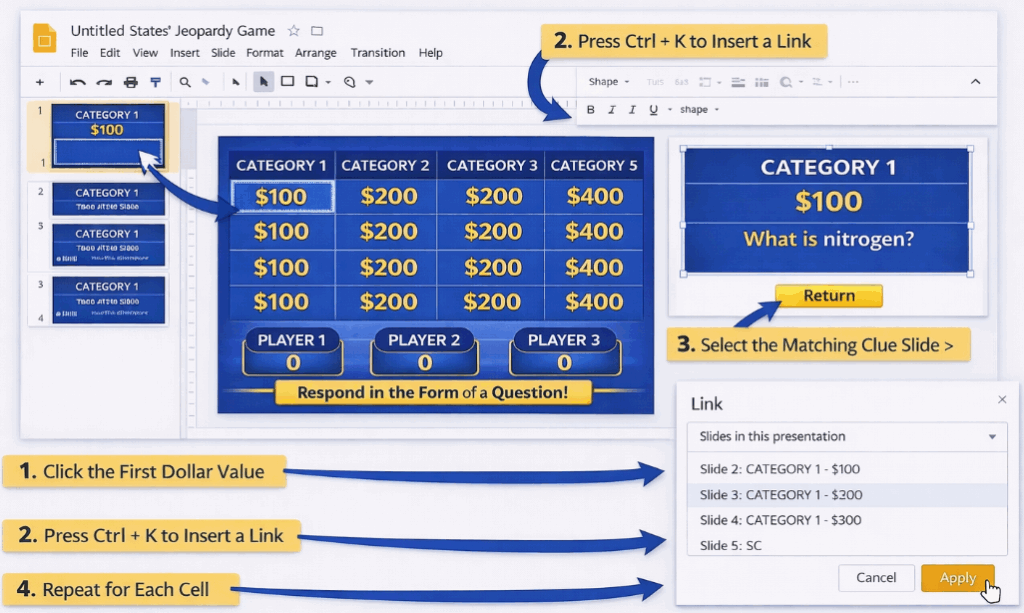
This step transforms a static slideshow into a fully interactive Jeopardy game in Google Slides. Each dollar value on your board needs a direct link to its matching slide so contestants can navigate with a single click.
Link Each Dollar Value Cell
Click on the first dollar value cell on your board. Press Ctrl and K to open the link dialog. Select Slides in this presentation. A list of all your slides appears. Choose the corresponding clue slide and click Apply. Repeat for all 20 cells. This is how you add hyperlinks that make every cell on the board a live navigation button.
Add Return Links to Every Slide
On each of these slides, click the return button shape. Open the link dialog, choose Slides in this presentation, and select your game board slide. Click Apply. To move faster, group the slides in the left panel that share the same return destination and paste a pre-linked button across them all at once.
Step 6: Polish the Visual Design
With structure and links in place, take time to customize the look. Open the theme editor via Slide, then Edit theme, to set a master color palette across all slides at once. A clean, consistent design makes a real difference in how polished the final product feels.
Adjust the Font for Readability
Use the theme editor to set a bold sans-serif typeface for headings. For any slide where text feels too small, select it and use the font size field in the toolbar to fine-tune. Aim for 40pt or larger on slides that will be projected in a large room.
Add a Title Slide
Before the game board, insert a title slide introducing the game name, the host, and any quick rules. This gives you a natural opening moment and sets the competitive tone before the board appears.
Make Learning Interactive with a Score Tracker
To keep contestants engaged and competitive, display a running score tracker somewhere visible, whether that is a shared doc on a second screen or a note in the corner of your board slide. Keeping the score visible throughout the session raises the stakes and keeps every team engaged until the final question.
How to Use a Template to Save Time in Make Jeopardy on Google Slides
If you are short on time, a Google Slides template is the fastest way to get a polished game running. Search online for a Jeopardy template and open the link in your browser. Click File, then Make a copy to save it to your own account. From there, swap in your own topics and clues. The colors, shapes, and links are already in place.
Every element of a readymade template is fully editable, so you can change colors and shapes to match your theme. Think of it as a starting framework rather than a finished product. It is especially useful if you want to skip the design phase entirely.
Google Slides vs PowerPoint: Which Should You Use?
Both platforms support everything you need to build an interactive Jeopardy game. PowerPoint offers slightly more advanced animation controls, which can be fun for dramatic clue reveals, and it works well in environments where Microsoft Office is the standard tool. However, it requires the installed app and manual file sharing.
For most people, especially educators and team trainers, the convenience of automatic saving and instant link sharing makes this the better option. If you already have a game built in PowerPoint, you can import it by going to File, then Import slides, and uploading the file. Most content carries over cleanly with minimal adjustments needed.
Running Your Jeopardy Game on the Day
Preparation on game day matters as much as the build itself. Before the event, do a full click-through test in presentation mode. Confirm every dollar value links to the right clue and every return button brings you back to the board. This ten-minute check prevents embarrassing mid-game hiccups.
Designate one person as game master to control the screen and read clues aloud. A dedicated host keeps the presenter display under control at all times. For remote sessions, open the presentation in full presentation mode before sharing your screen so contestants only see the clean board, not your editing interface.
After each round, click the return button to go back to the board. If a link ever fails, use the arrow keys to navigate manually. A confident host who stays calm during small hiccups keeps the energy exactly where it needs to be.
Common Mistakes to Avoid
Skipping the test run is the single most common mistake I see. One broken link in a 20-question game can stall everything. Always run a full click-through before going live.
Using too-small text is another frequent issue. What looks fine on a laptop monitor can become unreadable on a projector. Test on your actual display at full screen before finalizing.
Forgetting return buttons on every slide forces you to navigate manually mid-game, which breaks the flow. Every single slide in the deck needs a return path back to the board.
Free Jeopardy Template for Google Slides and PowerPoint
To make things even easier, I am including a ready-to-use resource you can start with right away. It is fully editable and works in both presentation platforms, so no matter which one you prefer, you are covered. You do not need to build anything from scratch if you prefer a head start.

To use it in Google Slides, open the file link, click File, then Make a copy to save it to your Google Drive. To use it in the PowerPoint template, download the file and open it in the desktop app. From there, swap in your own categories, clues, and answers. The structure, navigation links, and design are ready to go from the moment you open it.
Whether you are a teacher preparing a quick review game, a trainer building an onboarding quiz, or a host planning a party activity, this resource gives you a polished, professional starting point ready to launch in minutes.
Final Thoughts
This skill is one of the most practical things you can add to your presentation toolkit. Once you know the process, a full game takes under an hour to build, and the engagement it generates is genuinely impressive. Whether you build from scratch or start with a jeopardy game template, use the steps in this guide as your blueprint to create your own jeopardy game: clean board, linked clues, tested navigation, and a confident host.
Now open your browser and start building. Your contestants are waiting.
Frequently Asked Questions
A: Yes. Google Slides is free with any Google account, and free Jeopardy game resources are widely available online. You do not need any paid tools to build and run a polished, fully interactive game.
A: Google Slides does not automatically grey out answered cells. My workaround is to right-click a used cell during the game and change its fill color to dark grey or black to signal it is taken. You can also prepare a second version of the board with pre-greyed cells and swap to it as questions are answered.
A: Absolutely. Open the presentation in full presentation mode and share your screen via Zoom, Google Meet, or any video platform. Contestants see the board and submit answers verbally or in chat. Make sure your internet connection is stable and your display resolution is high enough for all text to be readable on participants screens.
A: Start with a grid of five categories and four clues each. This size gives you enough variety without making the build feel overwhelming. Once you are comfortable, you can expand to five clues per column or add a Double Jeopardy round at higher dollar values.
A: Yes. Once you understand the navigation link system, you can build quiz bowl games, digital escape rooms, choose-your-own-adventure stories, and more. The same click-to-slide mechanic that powers this Jeopardy game on Google Slides works for any non-linear presentation format.
Related Articles
 February 12th, 2026
How to Make Bullet Points in Google Slides (Step-by-Step Guide)
Google Slides Tutorials- March 13th, 2026
How to Create a Timeline in Google Slides (Step-by-Step Guide)
Google Slides Tutorials - February 10th, 2026
How to Make Google Slides Vertical
Google Slides Tutorials