
- Quick Answer (TL;DR)
- Why Use Bullet Points in Google Slides
- How to Make Bullet Points in Google Slides (Web)
- How to Create Sub-Bullets (Nested Bullet Points)
- How to Customize Bullet Styles
- How to Add Bullet Points on Mobile (iOS & Android)
- Styling & Formatting Tips
- Common Problems and Fixes
- Best Practices for Writing Effective Bullet Points
- Final Thoughts
- Frequently Asked Questions
How to Make Bullet Points in Google Slides (Step-by-Step Guide)

- Quick Answer (TL;DR)
- Why Use Bullet Points in Google Slides
- How to Make Bullet Points in Google Slides (Web)
- How to Create Sub-Bullets (Nested Bullet Points)
- How to Customize Bullet Styles
- How to Add Bullet Points on Mobile (iOS & Android)
- Styling & Formatting Tips
- Common Problems and Fixes
- Best Practices for Writing Effective Bullet Points
- Final Thoughts
- Frequently Asked Questions


If you create presentations regularly, knowing how to make bullet points in Google Slides is essential. Bullet points help organize ideas, simplify complex information, and make slides easier to read during meetings, classrooms, and business presentations.
Google Slides offers multiple ways to create and customize bullet lists — including keyboard shortcuts, formatting tools, sub-bullets, and custom symbols. Whether you’re a student, teacher, or professional, mastering bullet formatting can significantly improve the clarity and visual appeal of your slides.
This guide provides a complete, step-by-step explanation of how to create bullet points in Google Slides on desktop and mobile, along with formatting tips and troubleshooting solutions.
Quick Answer (TL;DR)
To make bullet points in Google Slides:
- Select or insert a text box
- Click the Bulleted list icon in the toolbar
- Or press Ctrl + Shift + 8 (Windows) / Cmd + Shift + 8 (Mac)
- Press Enter to add more bullets
- Use Tab for sub-bullets
Why Use Bullet Points in Google Slides
Bullet points improve readability and audience engagement. Instead of long paragraphs, bullet lists:
- Break information into digestible pieces
- Highlight key points clearly
- Improve visual hierarchy
- Keep slides clean and professional
In presentations, clarity matters more than density. Bullet points help you communicate faster and more effectively.
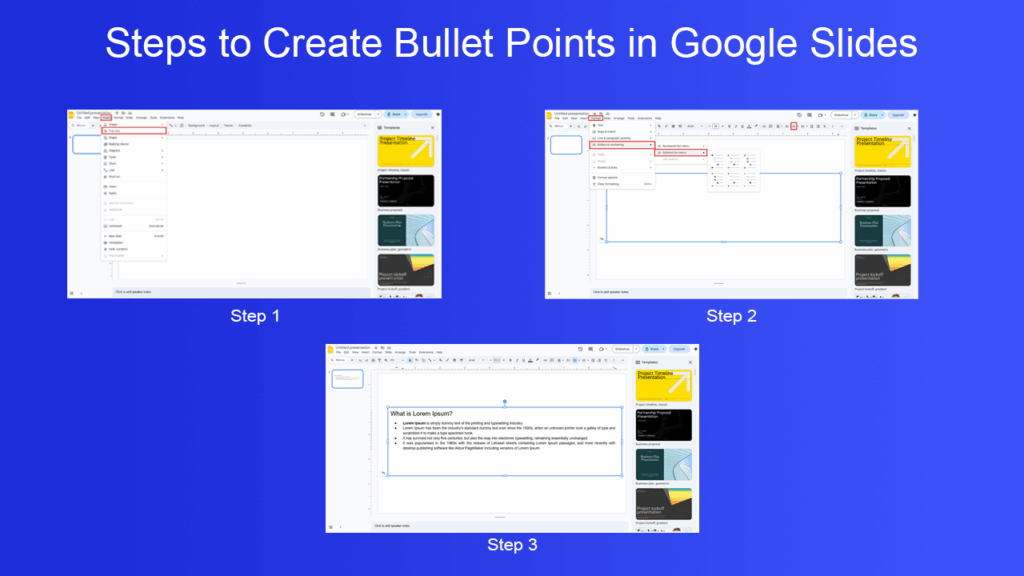
How to Make Bullet Points in Google Slides (Web)
Follow these simple steps:
Step 1: Open Your Presentation
Go to Google Slides and open your presentation file.
Step 2: Add or Select a Text Box
- Click inside an existing text box
- Or go to Insert → Text box to create a new one
Step 3: Enable Bullets
- Click the Bulleted list icon in the toolbar
- Or go to Format → Bullets & numbering → Bulleted list
Step 4: Start Typing
Type your first bullet point. Press Enter to create additional bullet points.
Keyboard Shortcut
- Windows: Ctrl + Shift + 8
- Mac: Cmd + Shift + 8
This shortcut instantly toggles bullet formatting on or off.
How to Create Sub-Bullets (Nested Bullet Points)
Sub-bullets are useful for outlining ideas.
- Press Tab at the beginning of a bullet line to create a sub-bullet
- Press Shift + Tab to return to the main bullet level
- You can also use the Increase indent and Decrease indent buttons
This feature is ideal for structured presentations like reports or strategy decks.
How to Customize Bullet Styles
Google Slides allows you to change how bullet points look.
Change Bullet Symbols
- Highlight your list
- Go to Format → Bullets & numbering → More bullets
- Choose a different symbol or character
Use Emojis as Bullets
You can paste emojis at the beginning of each line for a modern look.
Change Bullet Color & Size
Bullets match the text formatting. To change color or size:
- Highlight the text
- Use the Text color or Font size options
Keep formatting consistent across slides for a professional appearance.
How to Add Bullet Points on Mobile (iOS & Android)
If you’re using the Google Slides app:
- Open the presentation
- Tap the text box
- Tap the Format (A) icon
- Choose Bulleted list
- Use indent controls for sub-bullets
The mobile interface is slightly different, but the functionality is similar.
Styling & Formatting Tips
To make your bullet points more effective:
- Keep each bullet under one line if possible
- Use parallel sentence structure
- Avoid full paragraphs
- Limit to 5–7 bullet points per slide
- Use strong keywords instead of filler words
Remember: slides support your speech — they shouldn’t replace it.
Common Problems and Fixes
- Bullets Not Showing
Make sure you’re inside a text box and the cursor is active.
- Tab Key Not Creating Sub-Bullets
Check if you’re in editing mode. Also verify that bullet formatting is enabled first.
- Bullets Misaligned
Use the indent tools or reset formatting under the Format menu.
Best Practices for Writing Effective Bullet Points
Good bullet points are:
- Concise
- Clear
- Consistent
- Action-oriented
Instead of writing:
“The company experienced a significant increase in sales revenue during the third quarter due to improved marketing strategies.”
Write:
“Q3 sales increased due to improved marketing strategy”
Shorter bullets increase impact.
Final Thoughts
Learning how to make bullet points in Google Slides is simple but powerful. You can create bullet lists using the toolbar icon, keyboard shortcuts, or the Format menu. Sub-bullets help organize ideas, and customization options allow you to adjust symbols, indentation, and styling.
Whether you’re preparing a business report, classroom lecture, or pitch deck, bullet points enhance clarity and professionalism. Keep your lists concise, structured, and visually consistent to create more engaging presentations.
Frequently Asked Questions
Q:How do I quickly add bullet points in Google Slides?
Q: How do I remove bullet points in Google Slides?
Q: Can I change the bullet style in Google Slides?
Q: How do I create sub-bullets in Google Slides?
Related Articles
 February 10th, 2026
How to Make Google Slides Vertical
Google Slides Tutorials- February 6th, 2026
How to Record on Google Slides
Google Slides Tutorials - February 14th, 2026
How To Add Music Audio To Google Slides
Google Slides Tutorials