- How Do I Transfer Slides From Canva to Google Slides?
- Why You Might Want to Transfer From Canva to Google Slides
- Step-by-Step Guide: How to Transfer Canva to Google Slides
- Tips After Importing Canva to Google Slides
- 2 Alternative Methods – Transfer Canva to Google Slides
- Pro Tips for Best Results
- Final Thoughts
How to Transfer Canva to Google Slides (Most Easy Methods)

- How Do I Transfer Slides From Canva to Google Slides?
- Why You Might Want to Transfer From Canva to Google Slides
- Step-by-Step Guide: How to Transfer Canva to Google Slides
- Tips After Importing Canva to Google Slides
- 2 Alternative Methods – Transfer Canva to Google Slides
- Pro Tips for Best Results
- Final Thoughts


If you’ve ever spent hours crafting a stunning presentation in Canva only to realize you need it in Google Slides, you’re not alone. Many users face this challenge — especially since Canva’s beautiful designs don’t natively open in Google Slides. Fortunately, there are reliable ways to make the switch without starting from scratch. In this guide, you’ll learn exactly how to transfer Canva presentations to Google Slides step by step — plus pro tips for a seamless transition.
How Do I Transfer Slides From Canva to Google Slides?
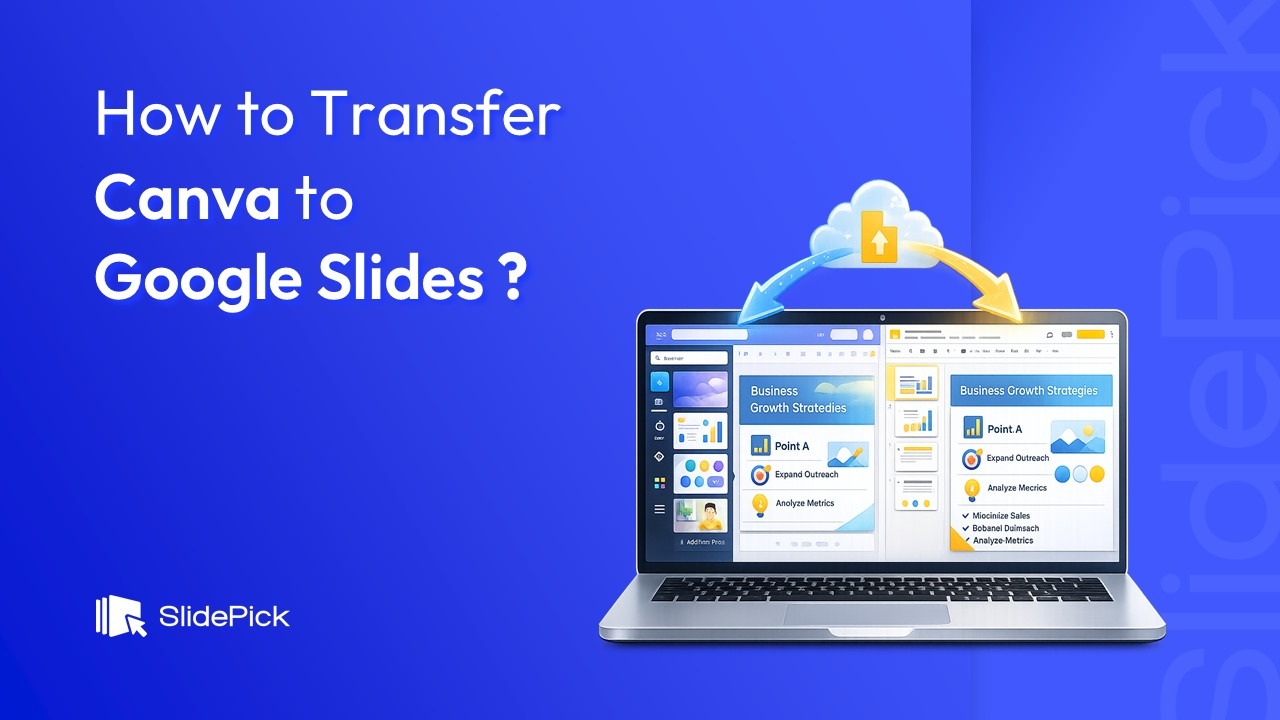
To transfer your Canva presentation to Google Slides, export the Canva file as a PowerPoint (.pptx) file, upload it to Google Drive, open it with Google Slides, and then save it as a native Google Slides file.
Why You Might Want to Transfer From Canva to Google Slides
Both tools are powerful, but each has advantages:
- Canva offers creative, professionally designed templates and rich visuals.
- Google Slides excels in online collaboration, real-time editing, and being accessible from anywhere with a Google account.
Because these tools serve different strengths, transferring your Canva design to Google Slides lets you enjoy the best of both worlds — stunning visuals and collaborative workflows.
Step-by-Step Guide: How to Transfer Canva to Google Slides
Here’s a detailed walkthrough to transfer your Canva presentation with minimal fuss:
Step 1 — Finalize Your Canva Presentation
Before exporting, review your Canva slides:
- Check for text misalignment.
- Simplify complex layouts.
- Use common fonts that are likely to exist in Google Slides — this reduces formatting issues later.
Step 2 — Export from Canva as a PowerPoint File (.pptx)
- Open your presentation in Canva.
- Click the Share button in the top-right.
- Select Download.
- Choose Microsoft PowerPoint (.pptx) under File type.
- Click Download.
This format preserves text, layout, and editable elements better than PDF or images.

Step 3 — Upload the PowerPoint File to Google Drive
- Go to drive.google.com.
- Click New → File upload.
- Select your downloaded
.pptxfile. - Wait for the upload to finish.

Step 4 — Open the File with Google Slides
- In Google Drive, right-click the uploaded file.
- Choose Open with → Google Slides.
- Your Canva file now opens as a Google Slides presentation.

Step 5 — Save as a Native Google Slides File
To make the file fully editable:
- In Google Slides, go to File.
- Select Save as Google Slides.
This creates a new copy that’s native to Google Slides.

Tips After Importing Canva to Google Slides
Because Canva and Google Slides use different engines, you might encounter a few differences:
- Fonts Changed?
Some fonts won’t transfer exactly. Go to Slide → Edit theme to update fonts across all slides.
- Animations & Transitions
These rarely carry over and may need to be recreated inside Google Slides.
- Videos or Media
Embedded videos in Canva do not transfer. You’ll need to re-insert video files or links manually.
- Layouts Look Off?
This is common. Just adjust elements by dragging, resizing, or realigning them.
2 Alternative Methods – Transfer Canva to Google Slides
Method 1 — Export Slides as Images
If the presentation will be static (no text editing needed):
- In Canva, download slides as PNG or JPG.
- In Google Slides, insert each image as a slide background.
⚠️ Text won’t be editable — use only if your design is finalized.
Method 2 — Connect Canva to Google Drive (Direct Export)
Canva lets you export straight to your Google Drive without downloading:
- Click Share → More.
- Choose Google Drive from the list.
- Select PPTX and save.
- Open the file in Google Slides from Drive.
This skips the download/upload steps.
Pro Tips for Best Results
- Use Standard Fonts: Choose fonts like Roboto, Open Sans, or Arial — widely available on Google Slides.
- Simplify Animations & Effects: Limit dynamic effects in Canva if you plan to convert.
- Keep a Backup: Save your original Canva file and the .pptx — just in case you need to export again.
Final Thoughts
Transferring Canva presentations to Google Slides doesn’t have to be a headache. By exporting to PowerPoint and opening the file in Google Slides, you unlock the best of both platforms: Canva’s design richness and Google Slides’ collaborative power. While a few adjustments may be needed after import, this method is the fastest and most reliable way to keep your slides editable and functional. With a few smart prep steps and formatting checks, you can make the transition smooth and professional.
Ready to deliver your next standout presentation confidently? Now you’ve got the step-by-step workflow to do just that!
Related Articles
 February 6th, 2026
How to Record on Google Slides
Google Slides Tutorials- March 12th, 2026
25 Google Slides Tricks and Tips to Make Every Google Slides Presentation Look Professional
Google Slides Tutorials - February 4th, 2026
How to Make Google Slides Look Good: Tips To Follow
Google Slides Tutorials