- Why Interactivity Belongs in Every Google Slides Presentation
- Getting Started: What You Need Before Your First Interactive Slide
- Method 1: Add Hyperlinks to Make Any Element Clickable
- Method 2: Create Clickable Navigation Buttons
- Method 3: Build a Linked Menu Slide for Non-Linear Navigation
- Method 4: Embed Videos and Audio Files Directly Into Your Slides
- Method 5: Make Interactive Google Slides with Drag and Drop Activities
- Method 6: Build a Quiz Using Slide Branching
- Method 7: Use Animations to Control Information Flow
- Method 8: Add Interactive Infographics and Charts
- Method 9: Create Interactive Maps and Location-Based Content
- Method 10: Use Presentation Templates to Speed Up the Process
- Method 11: Switching From PowerPoint to Google Slides
- Method 12: Use Google Classroom to Assign Interactive Activities
- Making Your Presentation More Interactive: Tips I Always Follow
- Frequently Asked Questions About Interactive Google Slides
- Final Thoughts
12 Ways to Make Interactive Google Slides Presentation Easily

- Why Interactivity Belongs in Every Google Slides Presentation
- Getting Started: What You Need Before Your First Interactive Slide
- Method 1: Add Hyperlinks to Make Any Element Clickable
- Method 2: Create Clickable Navigation Buttons
- Method 3: Build a Linked Menu Slide for Non-Linear Navigation
- Method 4: Embed Videos and Audio Files Directly Into Your Slides
- Method 5: Make Interactive Google Slides with Drag and Drop Activities
- Method 6: Build a Quiz Using Slide Branching
- Method 7: Use Animations to Control Information Flow
- Method 8: Add Interactive Infographics and Charts
- Method 9: Create Interactive Maps and Location-Based Content
- Method 10: Use Presentation Templates to Speed Up the Process
- Method 11: Switching From PowerPoint to Google Slides
- Method 12: Use Google Classroom to Assign Interactive Activities
- Making Your Presentation More Interactive: Tips I Always Follow
- Frequently Asked Questions About Interactive Google Slides
- Final Thoughts


I still remember the first time I sat through a presentation where someone just read bullet points off a static Google slide for forty minutes straight. By slide twelve, half the room had quietly opened their laptops. That experience stuck with me, and it pushed me to figure out a better way.
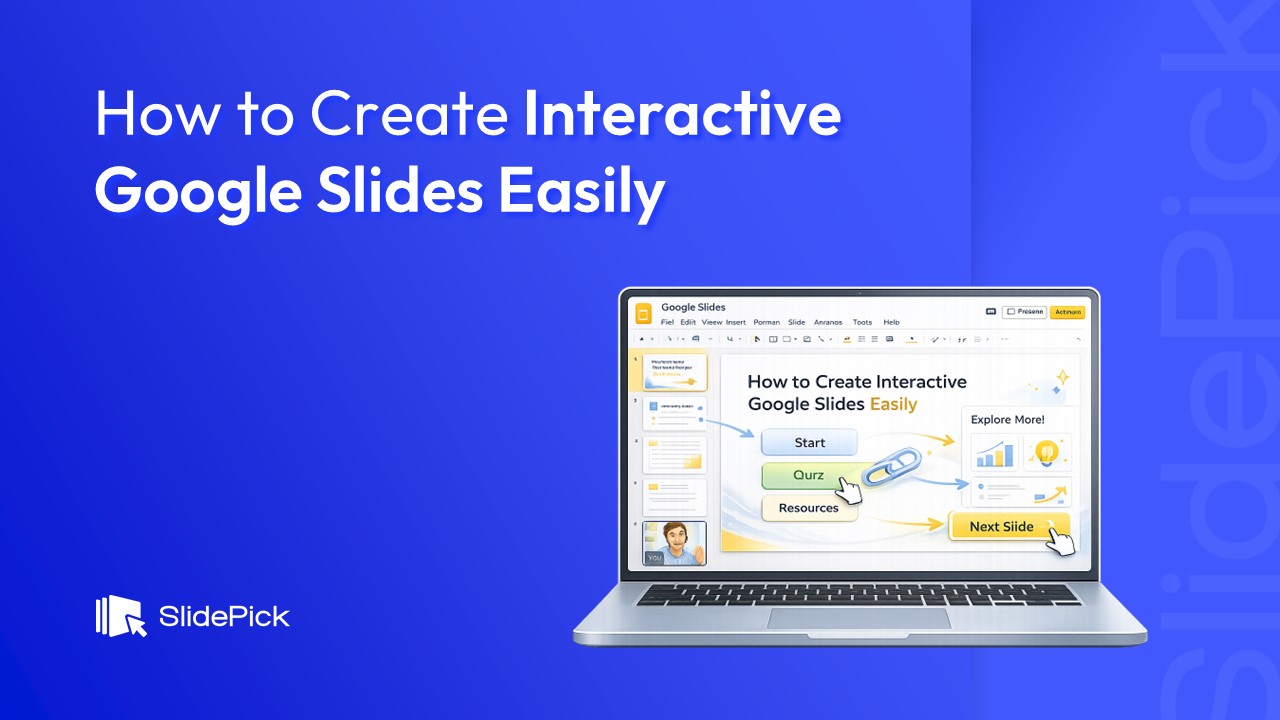
Learning how to make interactive Google Slides changed everything about how I present. It shifted my audience from passive observers to active participants, and the difference in engagement was immediate. If you have been looking for a practical, no-fluff guide on creating interactive Google Slides, you are in the right place. I am going to walk through every method I personally use, from adding hyperlinks and clickable buttons to building drag-and-drop activities, embedding media, and creating decision-based branching scenarios.
Why Interactivity Belongs in Every Google Slides Presentation
Before jumping into the how-to, I want to spend a moment on the why. A lot of people assume that interactive elements are only useful in classrooms or formal training sessions. That has not been my experience at all.
Whether you are putting together a client pitch, a team update, a product walkthrough, or a learning module, keeping your audience engaged is always the goal. Interactive Google Slides help you do that in ways a standard slideshow simply cannot. When viewers can click, explore, respond to questions, and navigate at their own pace, they stay mentally involved rather than waiting for you to reach the slide that matters to them.
Google Slides is also free and lives inside your browser, which means anyone with a Google account can access it immediately. Unlike PowerPoint, which requires a software installation and a Microsoft license, Google Slides is always available, always saved automatically, and always shareable with a link. These qualities make it one of the most practical tools for building interactive presentations that reach a wide audience across any device.
Getting Started: What You Need Before Your First Interactive Slide
You do not need any special software or prior design experience to start creating interactive Google Slides. Here is what I always set up before I begin:
A Google account. Everything in Google Slides lives in Google Drive, so sign in and head to slides.google.com to open a new presentation.
A clear content plan. I always map out my sections, the flow of information, and any branching paths before touching a single slide. This saves a lot of rework later, especially when building linked navigation.
Decisions about interactivity type. Are you building something for a live presentation? For students to complete independently? For self-paced browsing? The answer shapes which interactive elements make the most sense.
Once those three things are in place, you are ready to build.
Method 1: Add Hyperlinks to Make Any Element Clickable
The quickest way I know to make a Google Slides presentation interactive is to add a hyperlink to an element. A hyperlink can be attached to any text, image, shape, or icon, and it can point to an external website, a specific file in Google Drive, a Google Form, or another slide within the same deck.
Here is how I add hyperlinks in Google Slides:
- Select the text, image, or shape you want to make clickable.
- Press Ctrl + K (or Cmd + K on Mac), or go to Insert > Link in the toolbar.
- In the dialog box that appears, paste a URL, or choose “Slides in this presentation” to link directly to another slide.
- Click “Apply” and test it in Present mode.
The use of hyperlinks is one of the most versatile tools in Google Slides. I use them to connect table of contents items to their matching sections, to link data labels on charts to supporting slides, to point readers toward external resources, and to create “Learn More” buttons throughout a deck. Once you get comfortable with this technique, you will find yourself adding hyperlinks constantly.
A quick tip on the use of hyperlinks across multiple objects: if you want to add hyperlinks to several shapes at once, duplicate one already-linked shape and just update the destination for each copy. This is much faster than linking each shape from scratch.
Method 2: Create Clickable Navigation Buttons
Navigation buttons are what separate a flat slideshow from a truly interactive Google Slides presentation. They give your audience control over how they move through your content, whether that means going back to review something, jumping ahead, or returning to a home menu.
To add a navigation button, I follow these steps:
- Go to Insert > Shape and draw a rectangle or a rounded rectangle on your slide. Rounded shapes tend to look the most like real buttons.
- Double-click the shape and type your label. Common choices include “Next,” “Back,” “Home,” “Start Over,” or section names.
- Use the toolbar to style the button with a background color, border, and font that match your presentation’s design.
- Right-click the shape and choose “Link,” or press Ctrl + K. Select “Slides in this presentation” and choose the slide you want.
- Click “Apply.”
Once your first button is set up, copy and paste it across the slides where it belongs. This keeps the position and styling consistent, which makes navigation feel smooth and intentional.
I also layer transparent shapes over images or diagrams using the same technique. The result is a clickable hotspot that looks like part of the design but actually functions as a link to another slide. This approach works especially well for interactive maps, labeled diagrams, and product showcases where you want areas of a visual to be clickable without adding visible buttons.
Method 3: Build a Linked Menu Slide for Non-Linear Navigation
One of the features that transformed how I use Google Slides was learning to build a proper menu slide. Think of it as the home screen for your presentation. Instead of forcing people through every slide in sequence, a menu slide lets them jump directly to the section they want.
Here is the process I use:
- Create a slide near the start of your deck and label it something clear, like “Menu” or “Topics.”
- Add a shape or text label for each major section in your presentation.
- Link each label to the first slide of its section using Insert > Link > Slides in this presentation.
- At the end of each section, create a “Back to Menu” button that links back to the menu slide.
This structure is especially useful for long presentations, training decks, and resource libraries where different viewers may need different sections. Google Slides allows complete freedom in how you structure these paths, and once you have built one menu-based deck, you will want to use this approach for almost everything.
It also solves one of the most common complaints about presentations: that they force the audience to sit through content they already know. With a linked menu, viewers can skip directly to what is relevant for them.
Method 4: Embed Videos and Audio Files Directly Into Your Slides
Rather than switching tabs mid-presentation or sharing a separate link, I always embed videos directly into my Google Slides when media is part of the content. This keeps the audience focused on the presentation and eliminates those awkward moments of hunting for the right browser window.
To embed a video, go to Insert > Video. You can search YouTube directly from the dialog, paste a video URL, or select a file from Google Drive. After placing the video on your slide, open Format Options to control playback. You can set it to play automatically when the slide opens, start only when someone clicks play, and define specific start and end times so only the relevant portion plays.
For audio files, go to Insert > Audio and choose a file from Google Drive. This works well for narrated presentations, self-paced learning modules, and slide decks that students or viewers will go through on their own. I use audio files in lesson slides where I want to walk students through an activity without being physically present.
A few things to check when using embedded media: make sure Drive permissions are set so all viewers can access the files; otherwise, the media will not play for anyone outside your organization. Google Slides automatically carries the playback settings you configure, but always test in Present mode before sharing.
Method 5: Make Interactive Google Slides with Drag and Drop Activities
This is one of the most popular techniques for teachers, and for good reason. Drag and drop activities turn a static exercise into a hands-on experience where students drag pieces into the correct positions on the slide. I have used this for vocabulary matching, anatomy labeling, sentence building, math sorting, and timeline ordering.
Here is how I create drag-and-drop interactive Google Slides:
- Design your slide background with all the fixed elements, including the drop zones, labels, and instructions.
- Take a screenshot of the background and save it as an image. Then go to Slide > Change Background and upload that image. This locks the background so students cannot accidentally move it.
- Now add your movable pieces on top. These are typically shapes, text boxes, or image cutouts that students will drag and drop into place.
- Scatter the pieces around the slide so students start from a jumbled state. You can right-click pieces to adjust stacking order using “Bring to front” or “Send to back.”
- Share the file through Google Classroom with the “Make a copy for each student” setting enabled.
When students drag and drop their answers, they are physically engaging with the content, which builds stronger retention than simply reading or watching. Google Slides allows this kind of activity entirely within the browser, with no extra software needed.
A note on drag-and-drop for business use: I have also used this format in team workshops where participants drag priority items into a ranked order, or move ideas across a decision matrix. It works just as well for adults as it does for students.
Method 6: Build a Quiz Using Slide Branching
Creating a quiz inside a Google Slides presentation is one of the most creative uses of internal linking I have come across. The whole thing runs on hyperlinks and linked slide navigation, and it gives instant feedback to whoever is taking the quiz.
Here is how I build one:
- Create a question slide with your question text and multiple-choice answers formatted as shapes or text boxes.
- Build two feedback slides: one for a correct answer and one for an incorrect answer.
- Link each answer choice to its corresponding feedback slide using Insert > Link > Slides in this presentation.
- On the “Correct” feedback slide, add a “Next Question” button that links forward.
- On the “Incorrect” feedback slide, add a “Try Again” button that links back to the question slide.
This branching structure means the presentation changes based on what the viewer clicks. It is a clean way to create decision-based learning experiences, and it scales up to full assessments with multiple questions and outcome paths.
For more advanced quiz setups, I sometimes link a Google Forms survey directly into the deck. I create decision points using shapes, then add hyperlinks to the Google Form URL. Responses get collected in a spreadsheet automatically, which is useful when I want to track how a group is performing on a quiz or gather feedback in real time.
Method 7: Use Animations to Control Information Flow
Animations are one of those features that people either overuse or ignore entirely. I landed somewhere in the middle after a lot of trial and error, and here is how I actually use them.
The best application of animation in a Google Slides presentation is to reveal content one piece at a time. Instead of showing a full slide the moment it opens, I set individual elements, like bullet points, charts, and images, to appear on click. This keeps the audience focused on what I am currently talking about rather than reading ahead.
To add an animation, select any element on your slide and go to Insert > Animation. The Motion panel will open on the right. Choose your animation style, such as “Fade in” or “Fly in from left,” then set the trigger. I almost always choose “On click” because it gives me control over the pace during a live presentation. For self-paced slides, “After previous” can create a smooth automatic reveal sequence.
For interactive slide navigation, I sometimes use “entrance” animations on buttons or call-to-action elements to draw attention to them when a slide first loads. A subtle fade-in on a navigation button makes it clear that the element is there to be clicked, which helps first-time viewers understand that the presentation is interactive.
Keep animations minimal. One or two per slide is usually enough. More than that starts to feel like noise and can slow down the overall experience.
Method 8: Add Interactive Infographics and Charts
One of the most underused techniques in Google Slides is turning data visuals into interactive elements. Instead of dropping a chart on a slide and moving on, I link different sections of the chart to supporting slides with more detail.
To add a chart, go to Insert > Chart and pick your chart type. The chart connects directly to a Google Sheet, so any updates you make in the sheet will reflect in your slide automatically. Once the chart is placed, I overlay transparent shapes on different sections and link each one to a corresponding data slide using the same hyperlink method described earlier.
For infographics, I build the visual using Google Slides shapes, icons, and text boxes, then layer invisible clickable shapes over key data points. When a viewer clicks a statistic or section of the infographic, they jump to a slide with the full context behind that number.
Interactive infographics work especially well in executive presentations, product overview decks, and educational materials where the audience needs to explore data at different levels of depth. They replace walls of text with a visual-first format that people actually want to engage with.
Method 9: Create Interactive Maps and Location-Based Content
Interactive maps are a surprisingly easy addition to any Google Slides presentation that involves geography, logistics, regional data, or location storytelling. I use this approach in travel presentations, regional sales reports, and history lessons.
Here is how I build one:
- Go to Insert > Image and add a map image to your slide. This can be a screenshot, a custom map graphic, or a static export from Google Maps.
- Use Insert > Shape to draw transparent shapes over the regions, cities, or locations you want to make clickable. Set both the fill color and border to transparent using the toolbar.
- Right-click each shape and add a hyperlink pointing to the corresponding detail slide.
- Build the detail slides with photos, text, statistics, or whatever information is relevant to that location.
When someone clicks a region on the map, they jump directly to that location’s content. It is a genuinely impressive effect that takes about fifteen minutes to set up once you know the process. Interactive maps make data feel real and explorable rather than abstract and flat.
Method 10: Use Presentation Templates to Speed Up the Process
Not every presentation needs to be built from scratch. I regularly use presentation templates as starting points, especially when I am working under a deadline or need a polished design without spending hours on layout.
There are thousands of Google Slides templates available, both free and premium, that come pre-built with clean layouts, slide structures, and sometimes even placeholder navigation. When I pick a template, I look for one that includes clear section dividers, a logical slide progression, and enough visual flexibility that I can add my own interactive elements without fighting the design.
After loading a template, I replace the placeholder text and images with my actual content, add hyperlinks where needed, build out any quiz or branching sections, and then drop in navigation buttons using the methods above. Presentation templates cut my setup time significantly while still giving me a result that looks custom.
For teachers especially, there are entire libraries of Google Slides templates built specifically for interactive classroom activities, complete with drag and drop placeholders, worksheet-style layouts, and gamified quiz frameworks. Using these as a base is one of the best ways to start building interactive content quickly.
Method 11: Switching From PowerPoint to Google Slides
A question I get often is whether someone switching from PowerPoint to Google Slides will lose their interactive elements. The short answer is: mostly no, but it depends on what you built.
Basic hyperlinks, linked shapes, and embedded videos generally survive the conversion. Complex PowerPoint animations and some advanced transitions may not translate perfectly. If you are switching from PowerPoint to Google Slides and your original file had a lot of animations, I recommend reviewing each slide after import and rebuilding any effects that did not carry over.
The workflow for switching is straightforward. Upload your PowerPoint file to Google Drive, right-click it, and choose “Open with Google Slides.” Google Slides automatically converts the file into an editable format. From there, you can start adding or adjusting interactive elements directly.
Powerpoint or Google Slides? For collaborative work, real-time sharing, and anything that will be viewed in a browser, Google Slides wins. For offline use or very complex animation sequences, PowerPoint still has an edge. But for most day-to-day interactive presentations, Google Slides does the job without friction.
Method 12: Use Google Classroom to Assign Interactive Activities
If you are a teacher, Google Classroom is where all of this comes together. Once your interactive slide deck is ready, assigning it correctly inside Google Classroom makes the difference between a smooth activity and a logistical headache.
Here is the workflow I use every time:
- Build your interactive activity in Google Slides with drag and drop exercises, quiz questions, or fill-in-the-blank prompts.
- In Google Classroom, go to Classwork > Create > Assignment.
- Click “Add” and attach your Google Slides file from Google Drive.
- Change the attachment setting from “Students can view file” to “Make a copy for each student.” This step is critical. Without it, every student edits the same shared file, which becomes chaotic immediately.
- Add instructions, a due date, and a point value if needed, then post the assignment.
Each student now has their own editable copy. They can drag pieces into place, click through quiz branches, fill in text boxes, and complete the activity entirely inside Google Slides without printing a single sheet of paper. You can view their progress and completed work directly from the Student Work area in Classroom.
For students who are learning how to navigate an interactive slide for the first time, I always include a brief instruction slide at the beginning explaining how to click buttons and interact with the content. A short “How to Use This Slide” intro removes confusion and helps students get to the actual activity faster.
Making Your Presentation More Interactive: Tips I Always Follow
After building dozens of interactive Google Slides decks, here are the practices that consistently make the biggest difference:
Test everything before you share. Links behave differently in Present mode compared to editing mode. I always run through the entire deck in presentation mode before sending it to anyone. Clicking every button, every hyperlink, and every quiz answer takes five minutes and saves a lot of embarrassment.
Use consistent button placement. Navigation buttons should appear in the same spot on every slide. If your “Back to Menu” button is in the bottom-right corner on slide three, it should be in the same position on slides four, five, and six. Consistency makes the experience feel like an app, not a patchwork of linked slides.
Keep interactivity purposeful. Not every slide needs a clickable element. I add interactive features where they genuinely serve the audience, not just to say the presentation is interactive. A hyperlink that goes nowhere useful is worse than no hyperlink at all.
Label your slides clearly. When you are building links between many slides, descriptive slide titles make it much easier to find the right target in the “Slides in this presentation” dialog. I rename every slide immediately after creating it, using names that reflect the actual content.
Check sharing and Drive permissions. Before distributing your interactive presentation, confirm that anyone who needs to view it has access to any linked Google Drive files, audio files, or embedded videos. One wrong permission setting can break the entire interactive experience for viewers outside your organization.
Frequently Asked Questions About Interactive Google Slides
Can I make Google Slides interactive on a tablet or phone?
Yes. The Google Slides app supports viewing and editing on both iOS and Android. Hyperlinks and navigation buttons work in presentation mode on mobile, though building new interactive elements is easier on a desktop or laptop.
Does Google Slides have built-in quiz tools?
Not natively in the same way Google Forms does. But you can build a fully functional quiz using internal slide links and branching, as I described earlier. For collecting responses at scale, combining a slide-based activity with an embedded Google Forms link is the most practical approach.
What is the difference between a Google Slides and a PowerPoint slide when it comes to interactivity?
The core interactive features, such as hyperlinks, clickable shapes, and embedded media, work in both tools. The key differences are in collaboration and accessibility. Google Slides allows real-time co-editing from any browser, while PowerPoint has more advanced animation options for complex sequences.
Can students drag and drop on Chromebooks?
Yes. Drag and drop activities in Google Slides work on Chromebooks, which is one reason this format is so popular in K-12 classrooms where Chromebooks are the primary device.
Final Thoughts
Creating interactive Google Slides is one of those skills that pays off every single time you use it. The first interactive presentation I built took me a while to figure out. The second took half the time. By the third, it felt completely natural.
Start with one method, whether that is adding hyperlinks, building a menu slide, or trying a simple drag-and-drop activity, and get comfortable with it before adding more. Every technique I covered here is built on the same core tools: shapes, links, and slide navigation. Once those clicks and connections feel intuitive, you can combine them in almost any way you want.
The goal is always the same: keeping your audience engaged, helping them understand your content, and making the experience worth their time. Interactive Google Slides, when built with that goal in mind, do exactly that.
Give your next presentation one interactive element you have never tried before. You might be surprised how much it changes the room.
Related Articles
 February 2nd, 2026
How to Use Google Slides to Create Presentations
Google Slides Tutorials- February 6th, 2026
How to Record on Google Slides
Google Slides Tutorials - February 20th, 2026
How to Create a Pitch Deck in Google Slides: Step-by-Step Guide
Google Slides Tutorials